Bloggers and journalists
Prepare article images and thumbnails in consistent formats and dimensions.
Free · Open source · Apple Silicon · macOS 26+ · v3.2.0
Convert and resize image batches on your Mac. Reuse presets, automate folders, or bring images from a website into the same local workflow.
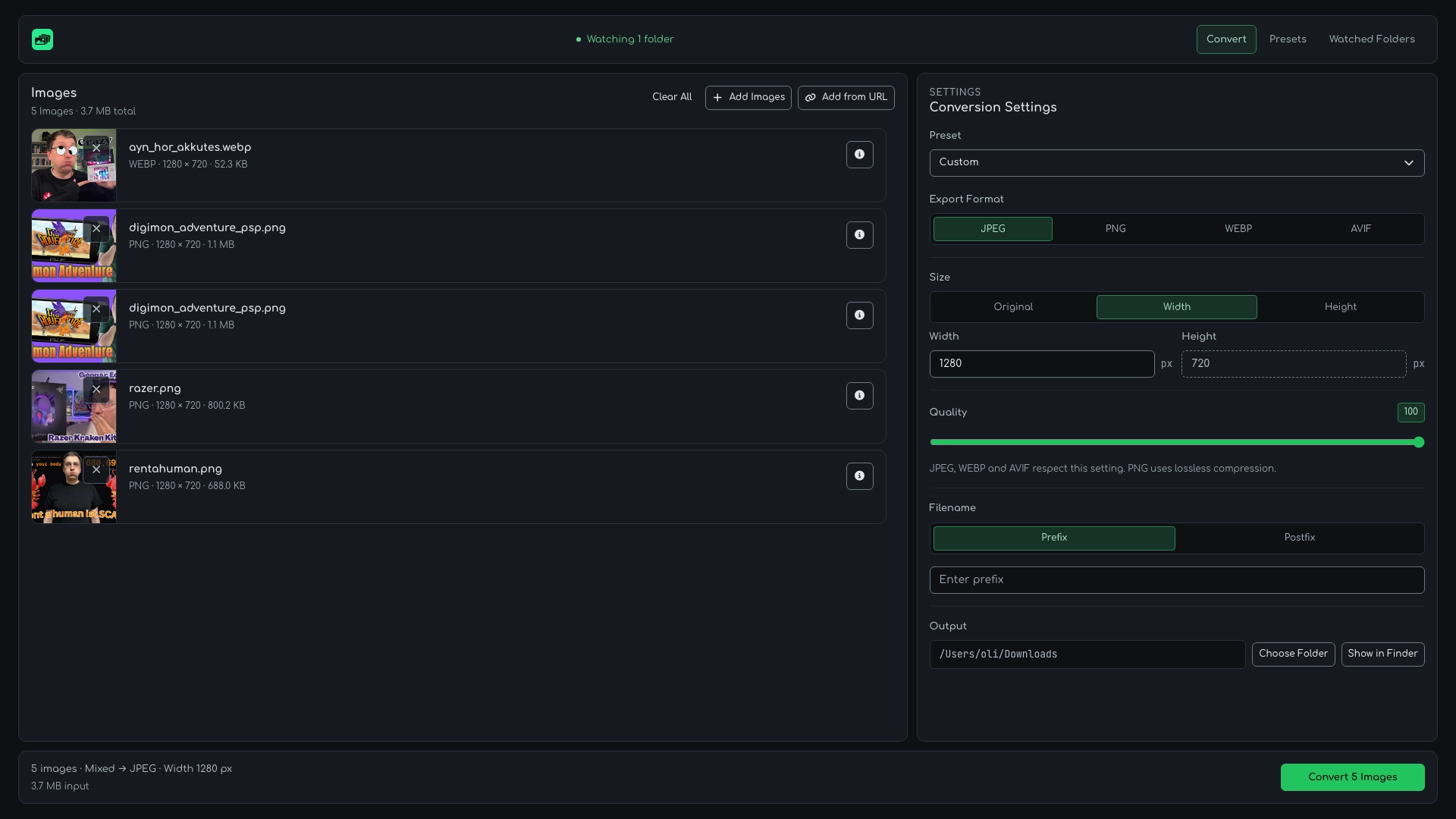
One local workflow for image conversion, resizing, naming, and export.
Overview
BulkPixel converts and resizes multiple images together. The free macOS app and its CLI process images locally.
Use cases
Prepare image batches for publishing, products and creative work.
Prepare article images and thumbnails in consistent formats and dimensions.
Generate WebP or AVIF assets and use the BulkPixel CLI in local workflows.
Create lightweight previews or multiple predefined exports using Presets.
Process batches of screenshots, photos, or thumbnails without uploading them to an online service.
Core workflow
BulkPixel combines a focused desktop interface with reusable automation and terminal access.
Convert multiple images to one shared output format in a single run.
Import public image URLs or discover images on a website. Track downloads, cancel or retry failures.
Set either width or height and preserve each image’s aspect ratio.
Save complete export settings for recurring image workflows.
Process matching files automatically with assigned Presets.
Convert Apple image files to JPEG, PNG, WebP, or AVIF on macOS.
Use the same conversion pipeline from scripts and terminal workflows.
Add an optional prefix or postfix before exporting a batch.
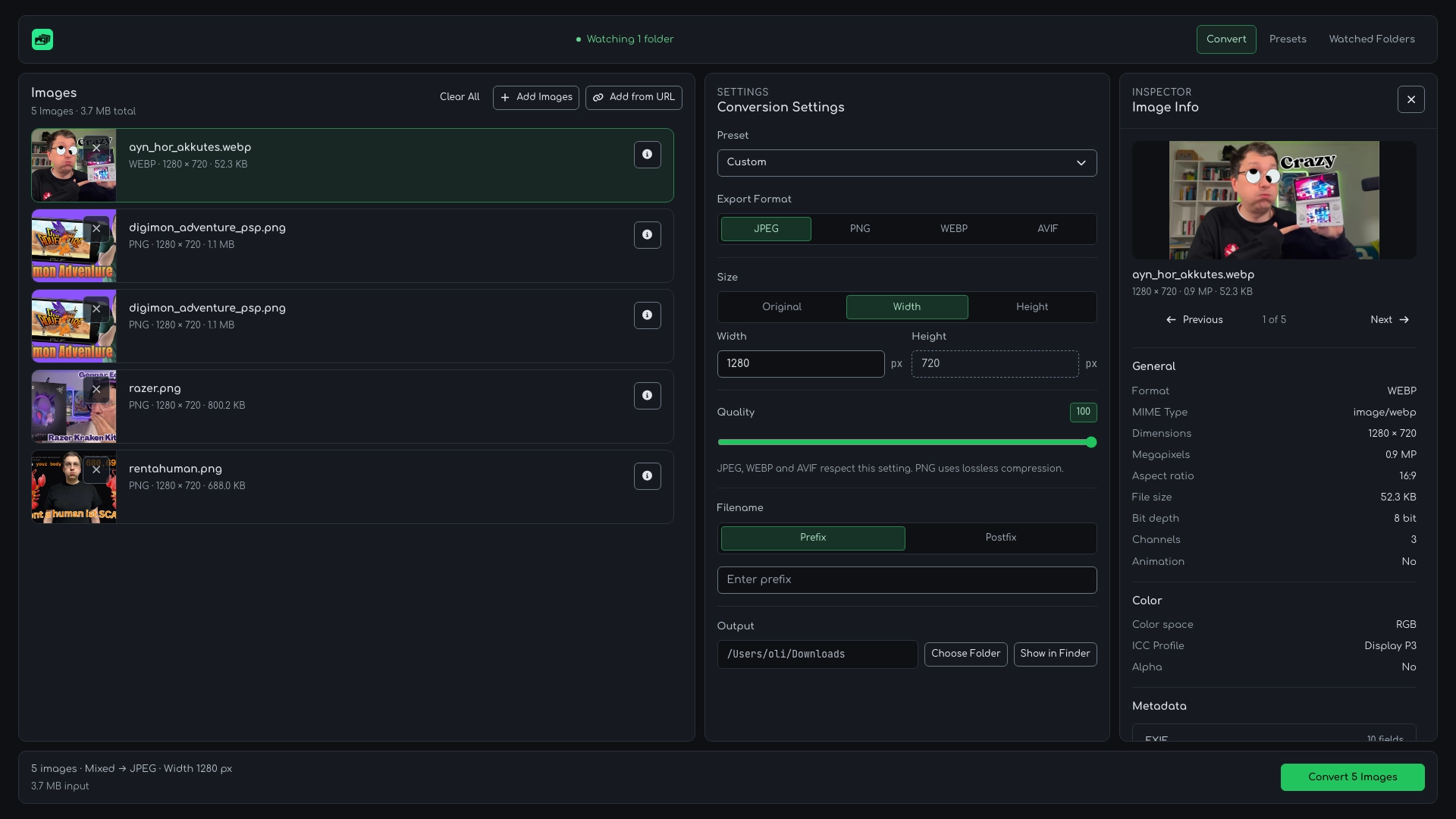
Review dimensions, format, color information, and embedded metadata.
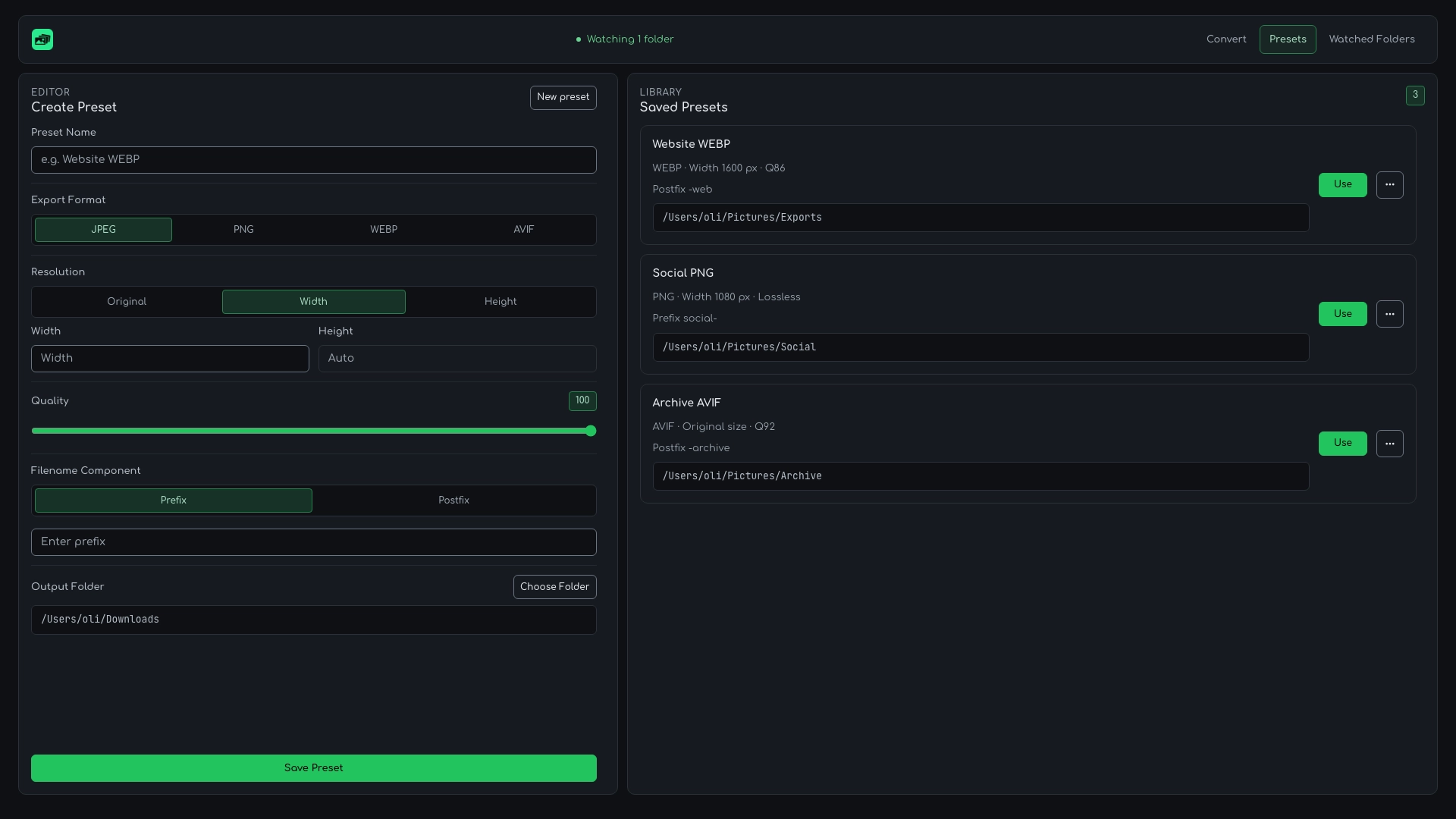
Presets
Save format, size, quality, filename settings and output folder once. Reuse the preset in the app or CLI. A “Blog Header” preset can produce 1600 px WebP files in your chosen folder.
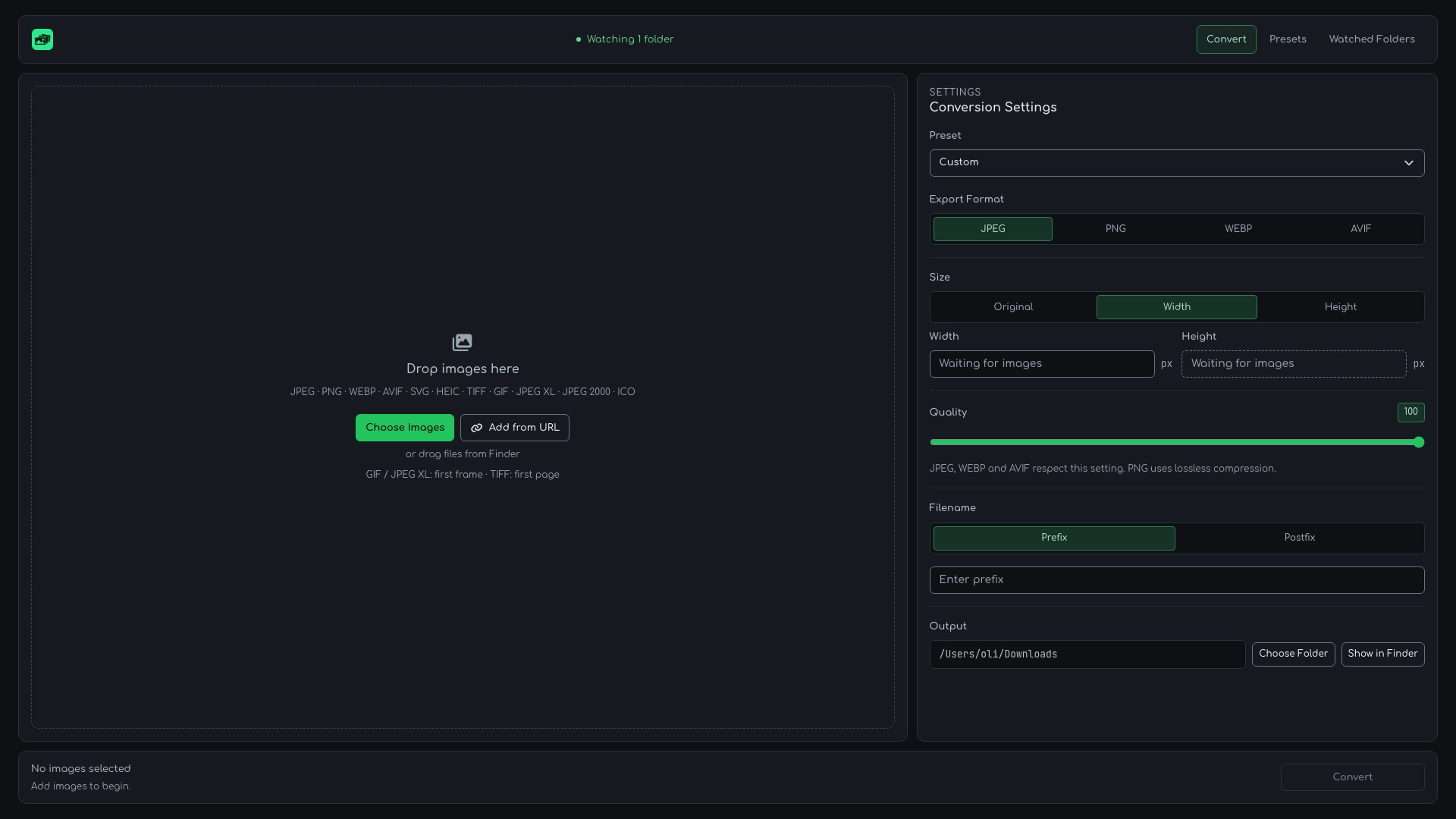
Batch conversion
BulkPixel applies one conversion setup to every image in the current batch.
Watched Folders
BulkPixel can monitor a selected folder and apply saved Presets when matching files arrive while the app is running.
All listed input formats work with Watched Folders, including TIFF, GIF, JPEG XL, JPEG 2000 and ICO. The app must stay running; subfolders are not watched.
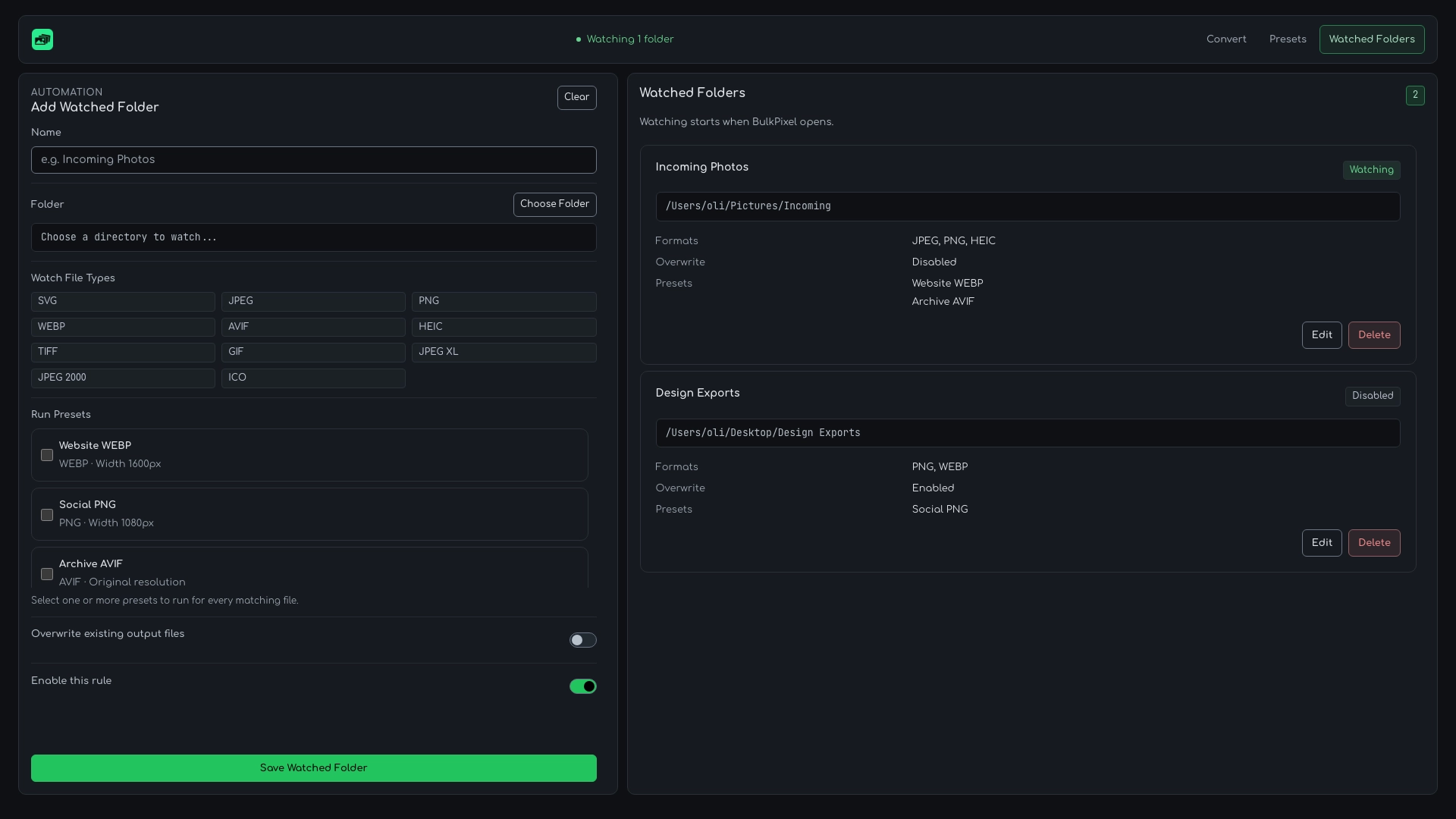
Image Inspector
BulkPixel’s Image Inspector shows the dimensions, format, color information, embedded metadata, and privacy-relevant metadata fields for a loaded image without leaving the conversion workflow.
Statistics
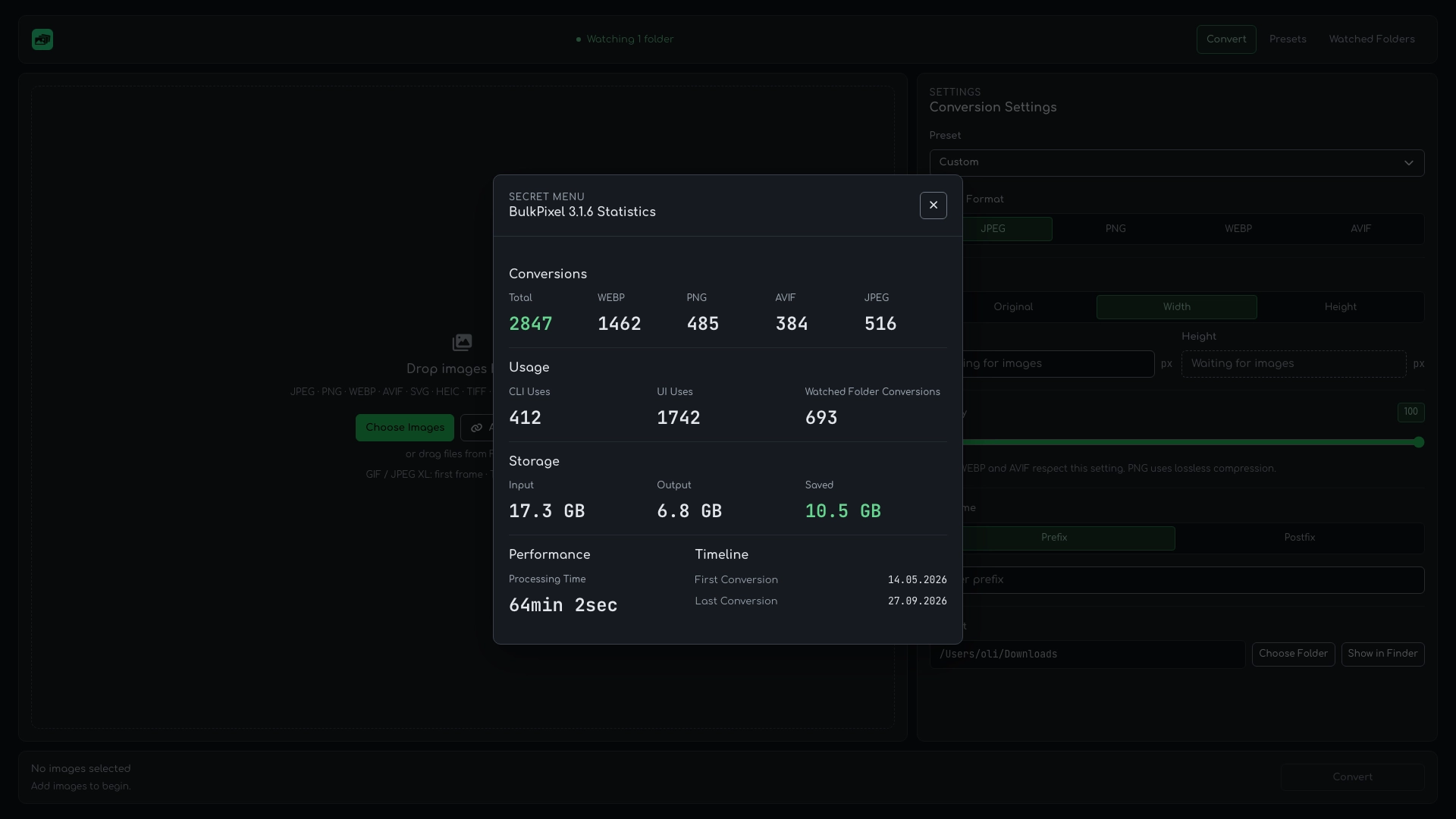
BulkPixel tracks conversion totals by format, input and output storage, saved space, processing time, CLI usage, Watched Folder conversions, and the local workflow timeline.
Formats
The desktop app and CLI support the same formats. Every input format below can also trigger a Watched Folder rule.
JPEG, WebP, and AVIF exports use the selected quality setting. PNG exports use lossless compression.
| Format | Import | Export |
|---|---|---|
| JPEG / JPG | Yes | Yes |
| PNG | Yes | Yes |
| WebP | Yes | Yes |
| AVIF | Yes | Yes |
| SVG | Yes | No |
| HEIC / HEIF | Yes | No |
| TIFF | Yes | No |
| GIF | Yes | No |
| JPEG XL / JXL | Yes | No |
| JPEG 2000 / JP2 | Yes | No |
| ICO | Yes | No |
HEIC and HEIF
BulkPixel imports HEIC and HEIF images directly on macOS and converts them to JPEG, PNG, WebP, or AVIF.
The native macOS decoder applies image orientation and converts color profiles such as Display P3 to sRGB.
HDR sources use the SDR-compatible base image for SDR output.
CLI and automation
The bundled CLI uses the same conversion pipeline as the desktop app. Homebrew installs the bulkpixel command.
bulkpixel convert \
  --input ./image-1.png ./image-2.jpg \
  --output-dir ./exports \
  --width 1200 \
  --format webp \
  --quality 90

bulkpixel convert \
  --preset "Blog Header" \
  --input ./image-1.png ./image-2.png

bulkpixel stats
Integrations
Bring remote images into the same queue as your local files.
Choose Add from URL and paste an image or website URL. Import Images downloads discovered images into the queue.
Right-click an image in Chrome, Chromium, Brave or Edge on macOS. Send to BulkPixel opens the app and adds that image.
Local-first
Local files can be converted offline. No conversion account or cloud upload is required.
Comparison
Choose by your operating system, output formats and workflow.
| Feature | BulkPixel | Converseen | ImgConverter |
|---|---|---|---|
| Platforms | macOS 26+; current download for Apple Silicon | Windows, Linux, macOS, FreeBSD | Windows, macOS, Linux |
| Batch workflow | Desktop app, CLI, presets and Watched Folders | Desktop conversion, resizing, rotation and flipping | GUI, CLI, presets and watch mode |
| Format coverage | 11 input format families; JPEG, PNG, WebP and AVIF export | 100+ image formats through ImageMagick; check installed codecs | JPEG, PNG, WebP, AVIF and TIFF export; JPEG XL with optional plugin |
| Open-source license | MIT | GPL-3.0-or-later | MIT |
Documentation checked on 9 November 2026. Codec availability can depend on installed packages.
Install and get started
For Apple Silicon, M1 or newer, with macOS 26+. Choose the DMG or install the app and CLI with Homebrew.
Apple’s first-launch instructions
Download for Apple SiliconInstall BulkPixel and the CLI with Homebrew:
brew tap oliverjessner/tap
brew install --cask bulkpixelOpen source
BulkPixel is free and open source under the MIT license.
Read the source, check format behavior or report a problem. No account is needed to use the app.
FAQ
Formats, privacy, installation and file safety.
Yes. BulkPixel is free and open source under the MIT license.
Yes. Local files can be converted offline. Importing images from URLs requires an internet connection; conversion still runs locally on your Mac without uploading images to a conversion service.
Yes. Add from URL accepts public image and website URLs, one per line. Cmd+V outside a text field opens the dialog with clipboard URLs. Click Import Images to start. The CLI supports --url. Images requiring login cookies are not supported.
Import JPEG, PNG, WebP, AVIF, SVG, HEIC/HEIF, TIFF, GIF, JPEG XL, JPEG 2000 and ICO. Export JPEG, PNG, WebP and AVIF. The app, CLI and Watched Folders share this support.
No. Animated GIF and JPEG XL files export the first frame as a still image. Multipage TIFF files export the first page. Choose PNG, WebP or AVIF to preserve transparency; JPEG uses a white background.
Yes. BulkPixel can import HEIC and HEIF images on macOS and convert them to JPEG, PNG, WebP, or AVIF.
Yes. BulkPixel imports ICO files and converts them to JPEG, PNG, WebP, or AVIF in the desktop app, CLI, and Watched Folders. For icons containing multiple images, it selects the highest color depth, then the largest dimensions at that depth, and converts one image per file.
Yes. BulkPixel is designed for batch image conversion and applies the selected output settings to every image in the batch.
Yes. You can define either a target width or height, and BulkPixel automatically preserves the aspect ratio.
Yes. Watched Folders can apply saved Presets automatically when matching files are added while BulkPixel is running.
Yes. BulkPixel includes a bulkpixel CLI for conversions, Presets, Watched Folders, and statistics.
Exports go to your selected output folder. The desktop app adds numbered suffixes for filename collisions. The CLI refuses existing output files unless you explicitly pass --overwrite. Keep exports in a separate folder when you want originals and results side by side.
By default, BulkPixel keeps the existing file and numbers the new output. Each rule can explicitly enable overwriting. Watched Folders work while the desktop app is running and do not watch subfolders.
Load the bundled extension and connect it using the browser setup guide. Then right-click an image and choose Send to BulkPixel. Chrome, Chromium, Brave and Edge on macOS are supported; the extension is not automatically installed from a browser store.
The current download requires macOS 26 or later and Apple Silicon, starting with M1. It is not an Intel or universal Mac package.
No. BulkPixel currently targets macOS.


